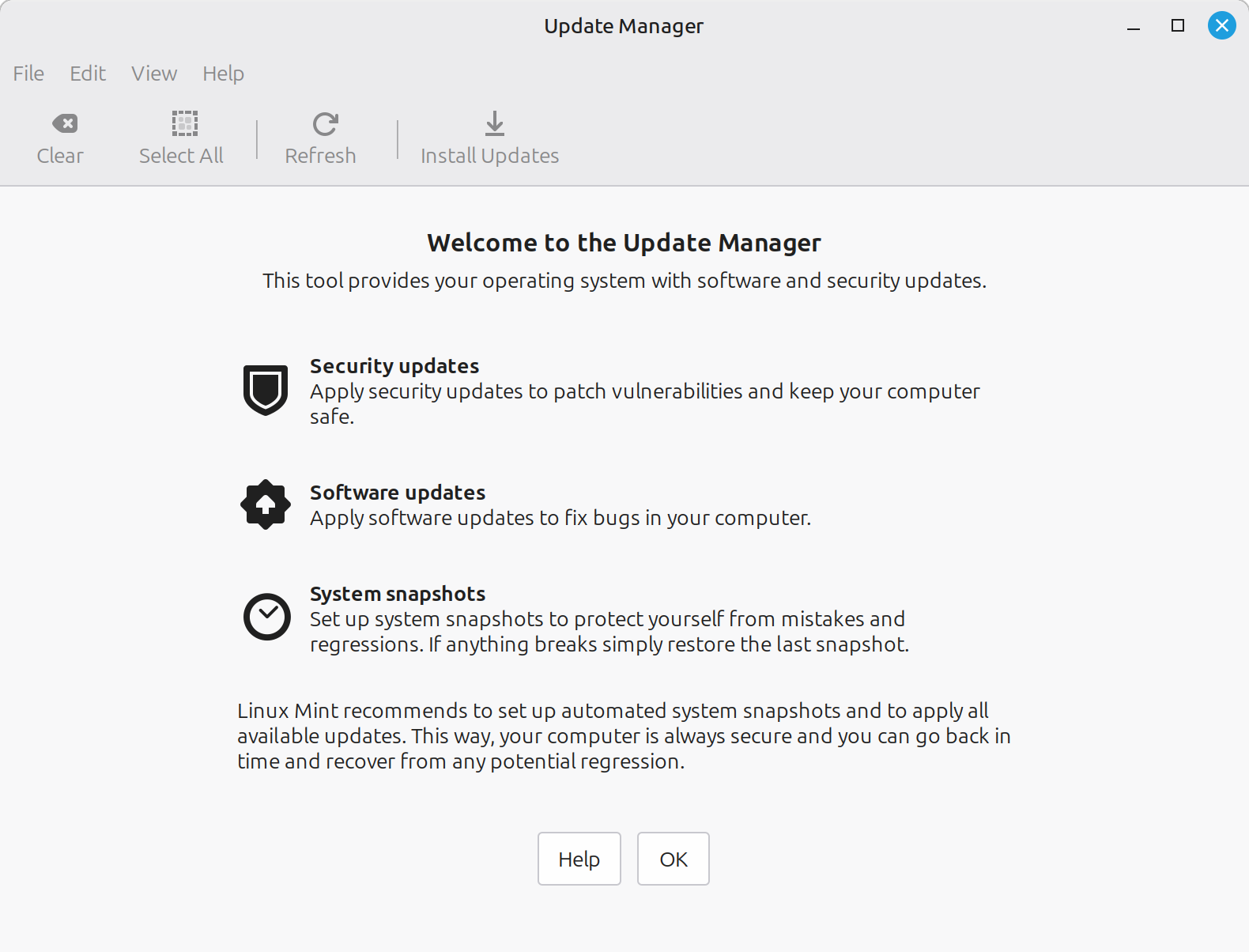
Most Linux distributions receive updates continuously and the updates include security patches for the Linux distribution and its installed applications, all provided on the same frequent schedule. The Update Manager is the software updater for Linux Mint. Update Manager runs automatically to help you update your software, system security, the Linux kernel, and to support newer hardware components. You can launch it from the menus, the Welcome Screen, or from the icon in the system tray to view and install the latest updates and fixes.
Linux Mint periodically checks to see if new software, bug fixes, and security updates are available for your computer. The updates are for Linux Mint, all of its components, and all of the applications you've installed through the Software Manager application. This ensures that you have the latest updates and protection for your computer's software and hardware as soon as it's available, not just once a month like other operating systems. You choose whether you want to have updates occur automatically or manually. You should also be aware that it is very rare that you receive an update for the distribution or its installed applications that requires disruptive rebooting!
Using the Update Manager
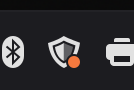
In day-to-day use you will usually launch the Update Manager from the icon in the system tray. When the icon appears as below, it indicates that updates are available.
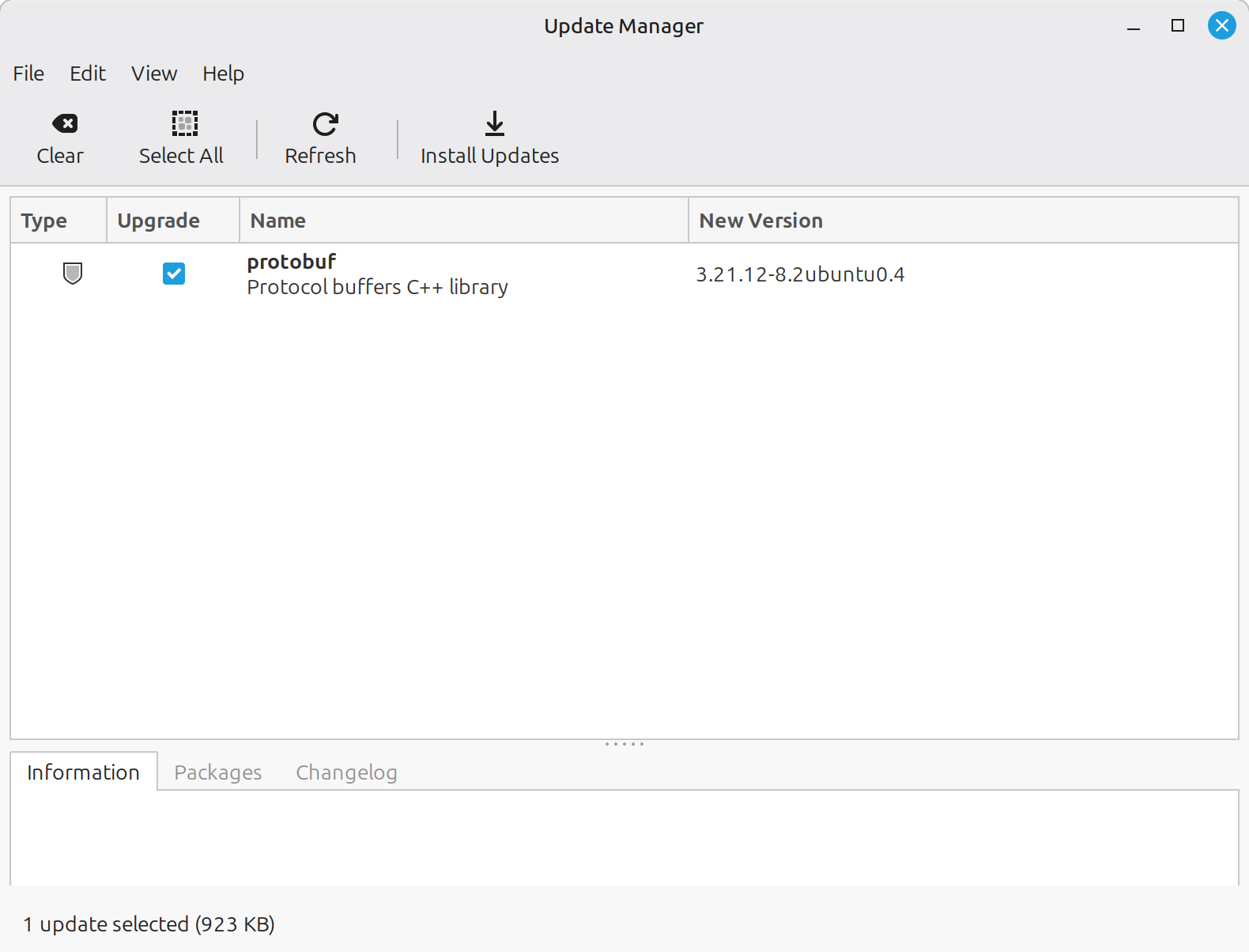
To install the updates, simply click the icon in the system tray and click the Install Updates button.
When the updates are finished, the screen will show a large checkmark and the words "Your system is up to date." That's all you need to do. The next time the icon lets you know that updates are available, just launch the Update Manager and apply the new updates. In the rare event that you need to restart your computer after an update the Update Manager will let you know with a banner at the top of the window.
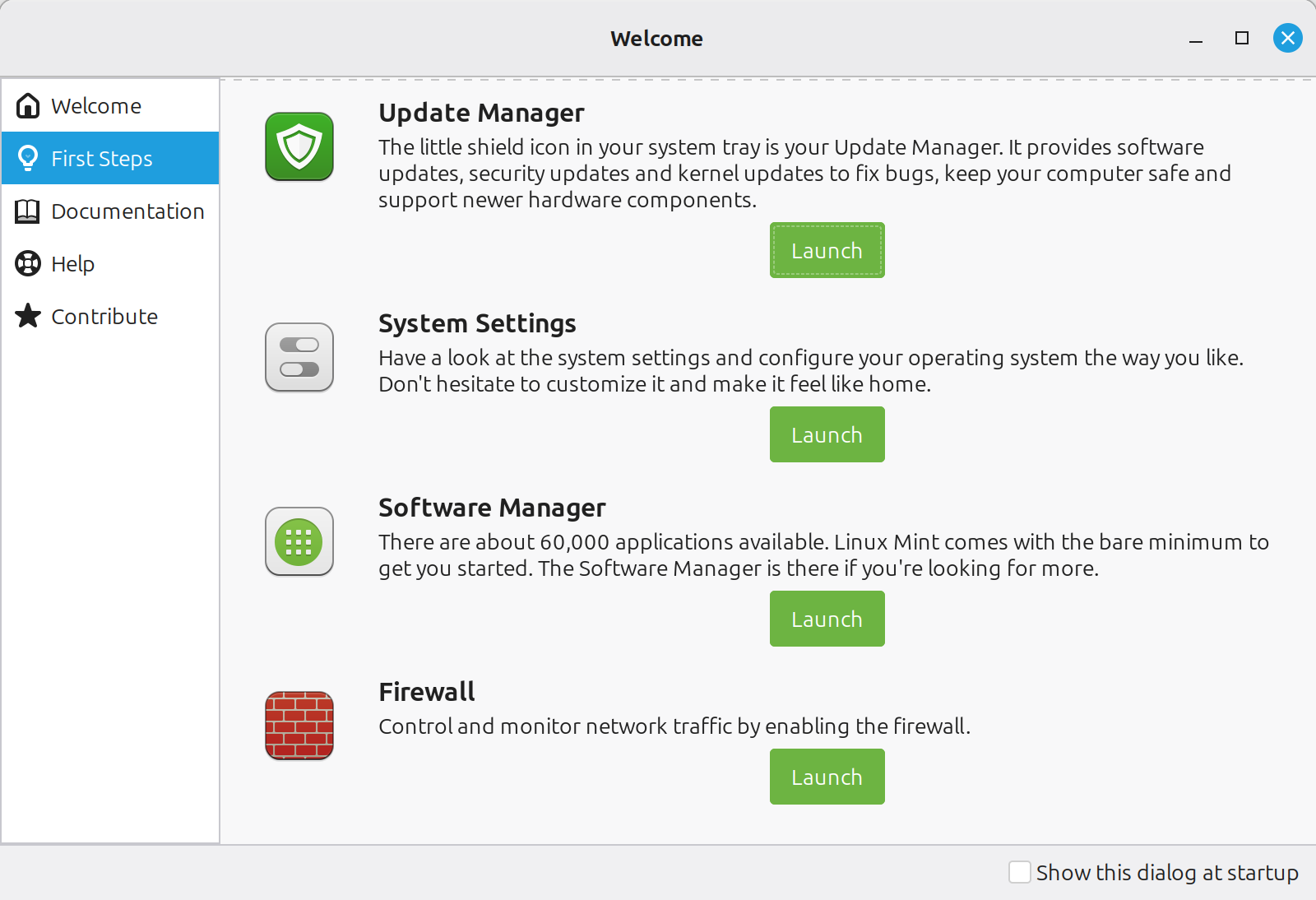
NOTE: You can launch the Update Manager from either the Linux Mint Welcome Screen or from the icon in the System Tray. From the Welcome Screen, click the Let's Go! button, then scroll to the Update Manager and click the Launch button below the description.
Update Manager options you can use
The Update Manager's Edit menu includes Preferences and Software Sources that give you control over some additional settings that will tailor the updates to the way you want to work. Making changes to these settings is completely optional so if you don't want to mess with them you won't stop or break anything with Mint's updates.
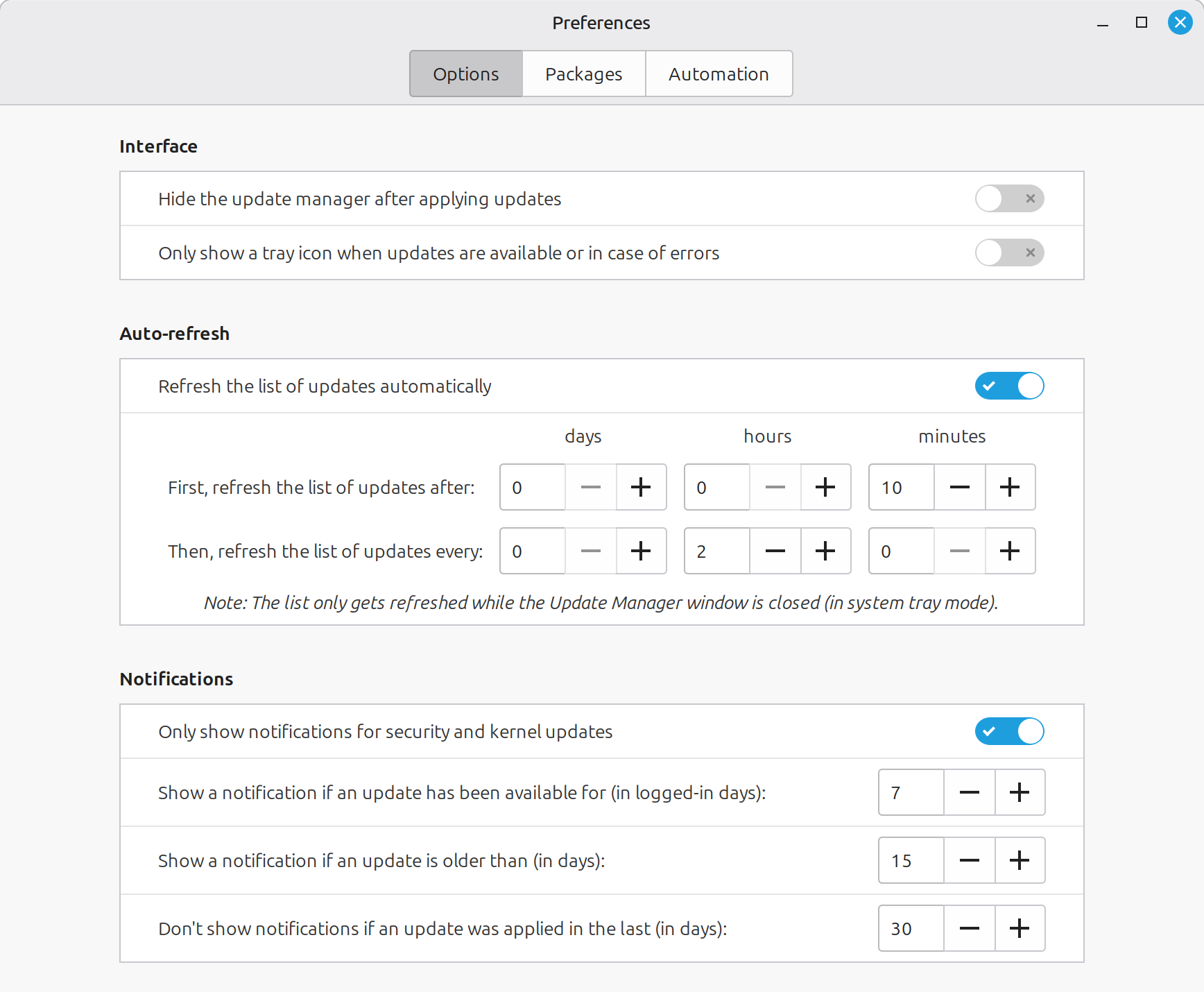
Options
The Preferences selection takes you first to the Options tab. You can control how the icon behaves using the Interface settings. The Auto-refresh settings can help you speed up or slow down how frequently Update Manager checks for updates. The Notifications section controls how the Update Manager will notify you of available updates.
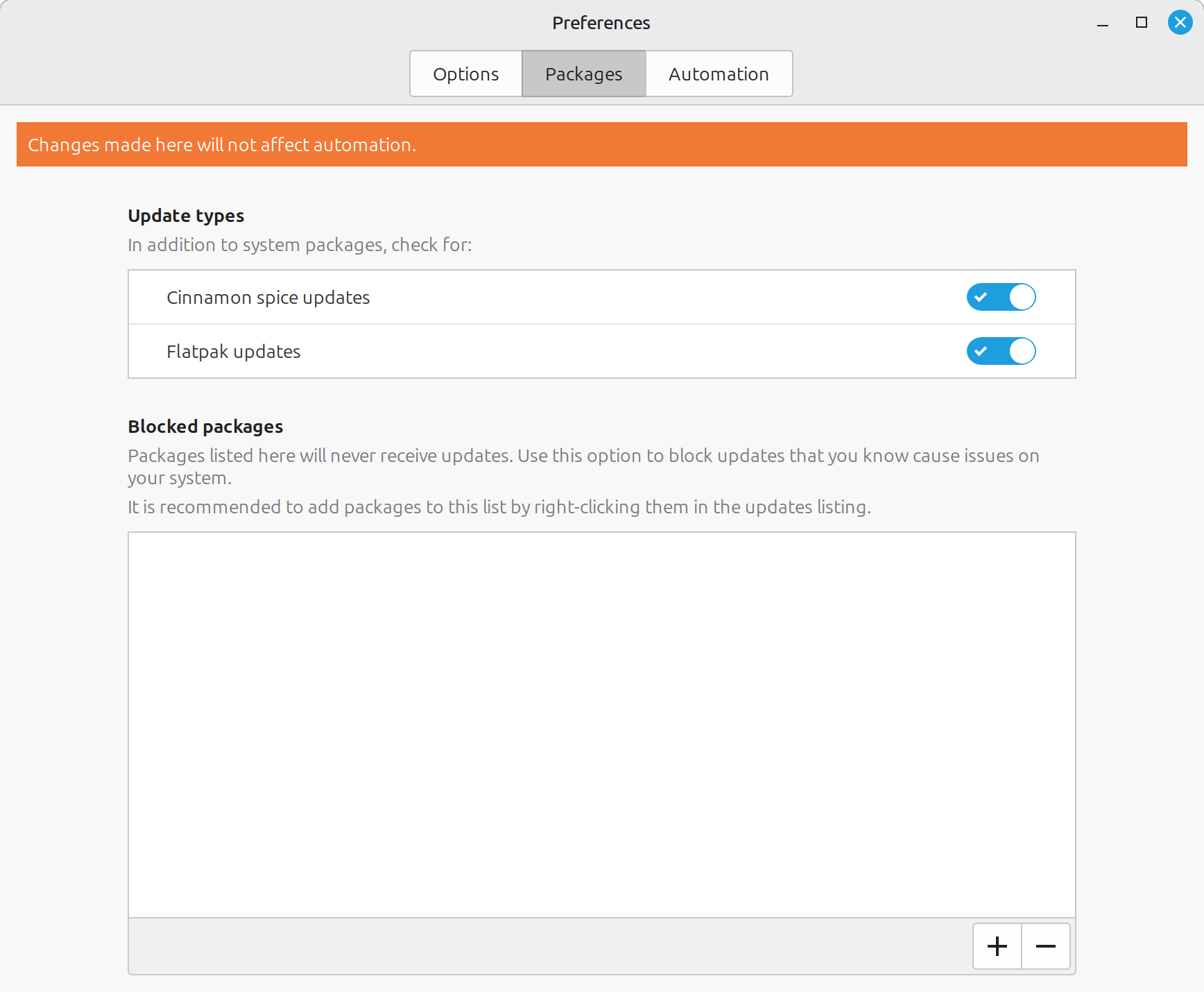
Packages
The Preferences selection's Packages tab allows you to check for updates to Cinnamon spices (if you are using the Cinnamon desktop) and Flatpaks along with the regular Linux Mint distribution's security and software updates. You can also block specific packages here. That might be use to stop your computer from receiving an update to a newer version of an application when your workflow is dependent on the features of the older version or if you don't want to use the new features included in the update.
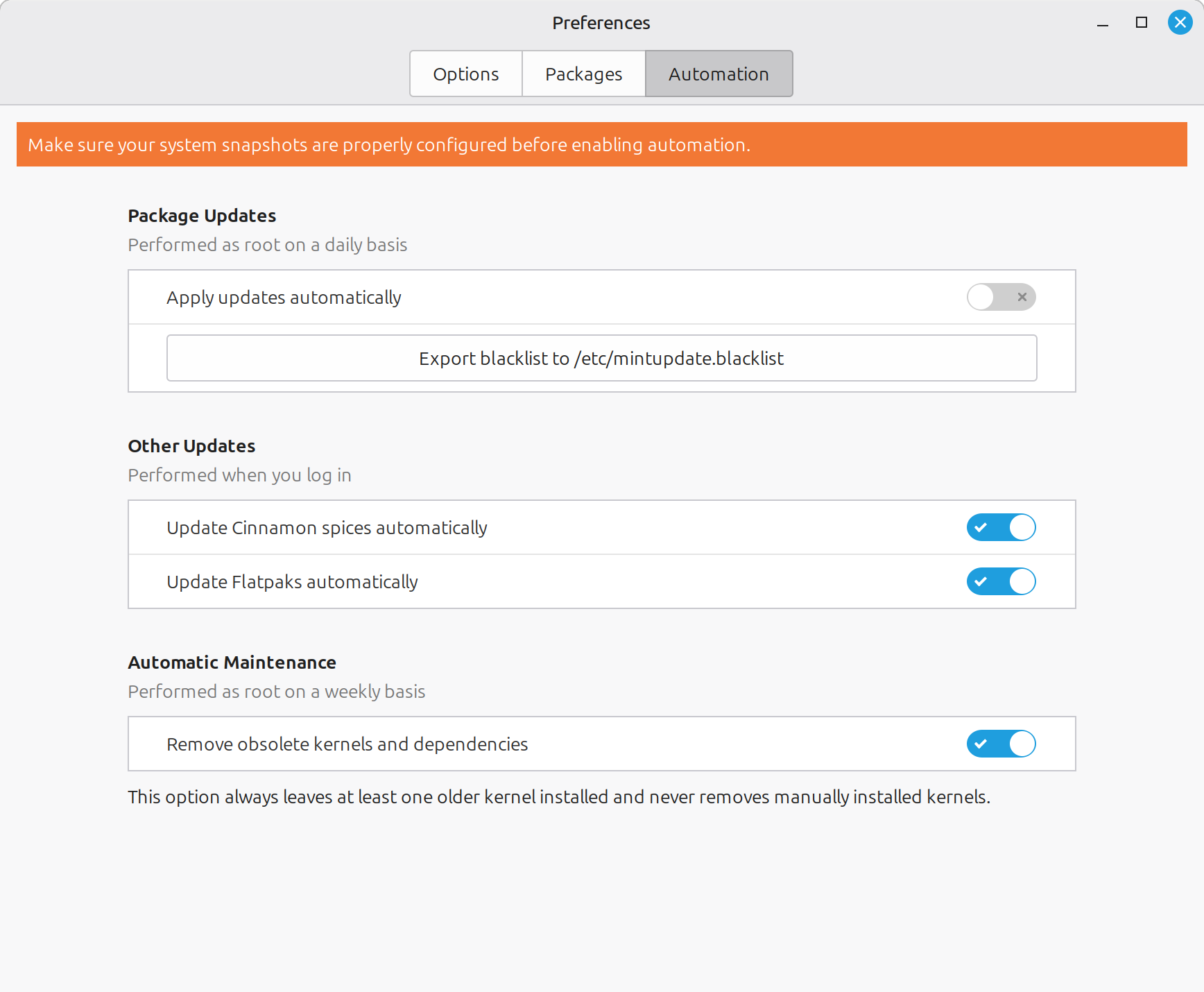
Automation
The Preferences selection's Automation tab lets you install system updates without having to acknowledge that you want to apply the updates. The installation of Cinnamon spices and Flatpaks can also be installed as soon as you log in. The Automatic Maintenance selection performs a weekly check for older kernels and dependencies. You will still have at least one older kernel installed after this maintenance.
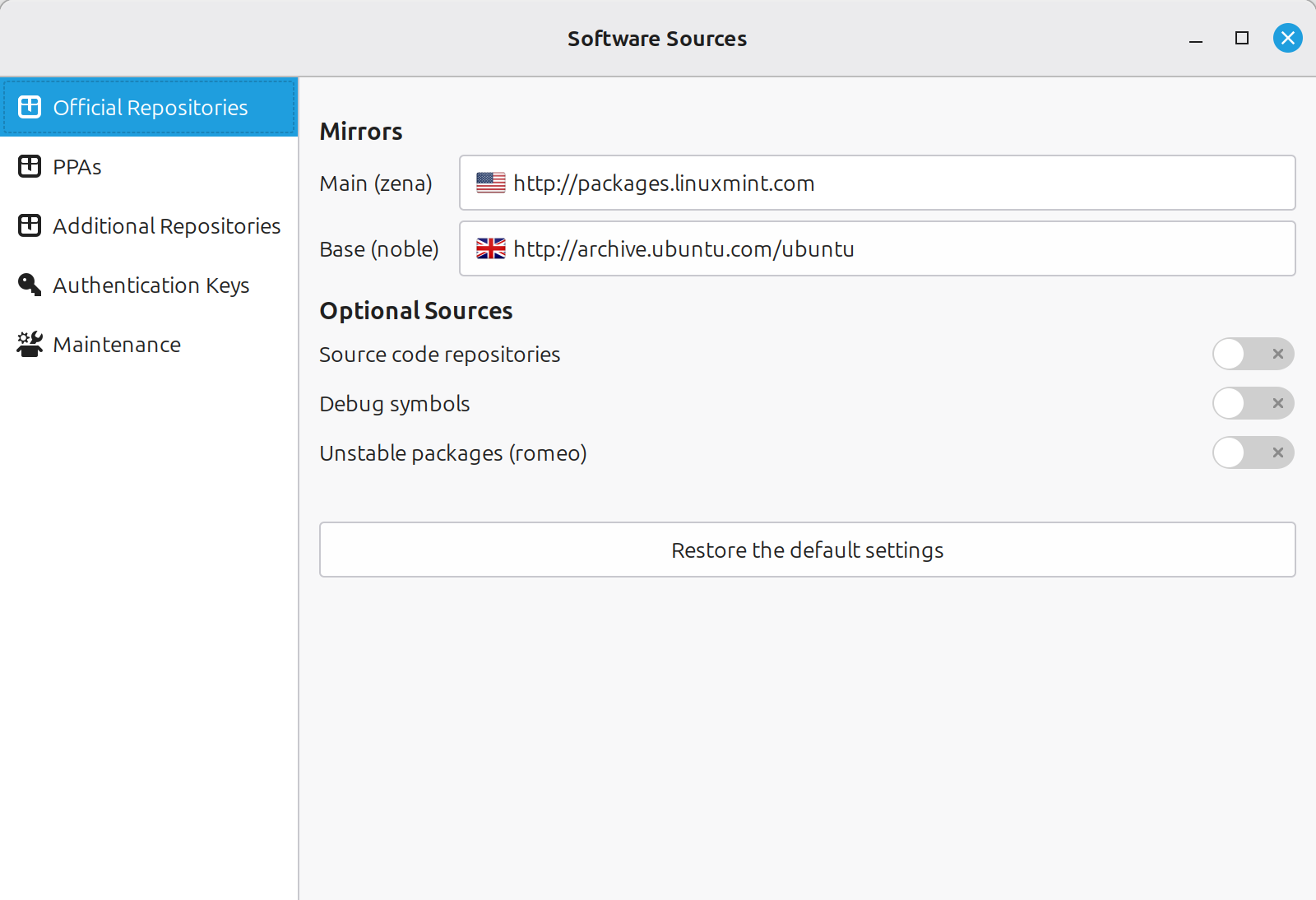
Software Sources
The Software Sources menu selection gives you control over which official repositories are used to obtain updates from Linux Mint, Ubuntu (Mint is based on Ubuntu), and optional sources. The left panel on the left also gives you access to PPAs (Personal Package Archives) a well as additional repositories, authentication keys and maintenance tasks.
This website uses cookies
Select which cookies to opt-in to via the checkboxes below; our website uses cookies to examine site traffic and user activity while on our site, for marketing, and to provide social media functionality.
Cookie settings
We use cookies to enhance your browsing experience, allow Google to serve personalized ads or content, and allow Google to analyze our traffic. By clicking "Accept all", you consent to our use of cookies. By clicking "Reject all" or de-selecting "Analytics", the search functionality (powered by Google's Custom Search) will not function, but everything else on the site will work as designed.
Analytics
The "analytics" group of cookies allows Google to serve personalized ads or content, and analyze our traffic. By clicking "Accept all", you consent to our use of cookies. By clicking "Reject all", the search functionality (powered by Google's Custom Search) will not function, but everything else on the site will work as designed.